Step 2
Step 3
Setp 4
Find your Shop / find your goods...
Add them to your Easyshop shopping cart
Shopping Cart and Checkout...

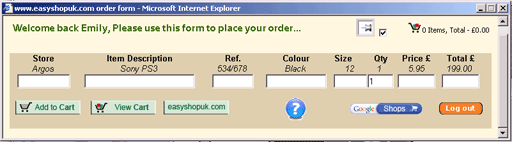


You can display the content of your shopping cart at any time when you are logged in by clicking on the shopping cart button. Viewing the cart also allows you to check that you are going to order the right products and the right quantities. The cart will calculate and display the total number of items.

Use this button to return to the Easyshop home page and visit more shops in our shopping mall.

This button brings up our 'How to Shop' page.

This button opens a Google search page to help you find even more shops outside of our shopping mall

This display at the top right of the Order Form keeps you informed of the contents of your cart.

Once you have finished shopping, don't forget to logout.
2. Find your shop / find your goods...
3. Add them to your Easyshop shopping cart

Highlight the store item information by dragging the mouse over the text while holding down the left mouse button. Use 'Ctrl c ' to copy the text (hold down the 'Ctrl' key and press 'c') now open the Easyshop order form, and use 'Ctrl v' to paste the information into the Easyshop order form.
All items will stay in your shopping cart until you either remove them or purchase them, even after you have logged out.
4. Shopping Cart and Checkout...
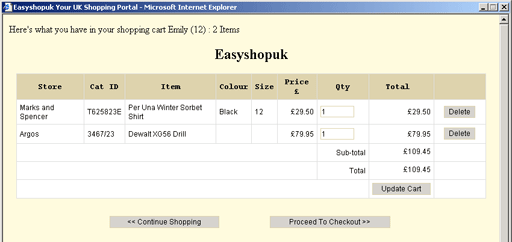
You can check and easily modify the quantities for each product.
If you decide to change the quantity, you need to do two things:
- Change the quantity (or quantities, if several products are concerned) by changing the figure in the quantity checkbox for that product.
- Click on the button "Update Cart" This will save the changes and also recalculate the subtotal for all the items in the cart.
You can remove any item from your shopping cart by clicking on the Delete button next to it:
Once you are satisfied with the products, their quantities and the subtotal of your order, you can proceed to the checkout (at this point you are not purchasing the goods).
To proceed to checkout, click on the Proceed To Checkout button:
Enter Your Spanish Address And Payment Information. This information is copied from your registration information. If you have not fully completed your registration, you will need to complete this 'checkout step' each time you order. To modify your registration information click on the 'My Easyshop' link at the bottom of the home page.
Select from Card, Transfer or Cash:
Card: Payment can be made by Visa/ Mastercard or Spanish debit card over the phone. We will not save your credit card details. A credit card surcharge of 2% will be applicable.
Transfer: You can either transfer funds from your Spanish bank account or pay cash into our Easyshopuk bank:
BBVA - 0182 1150 01 0201524924
In either case, quote your name and order ID number to identify your payment.
Cash: Goods can be paid for with cash, payable in our Teulada shop.
Select from Collect or Deliver:
Goods can be delivered directly to your Spanish Address (at local carriage rate), or collected from our shop in Teulada.
Confirm Order:
Please check all quantities and information is correct, confirm you have read the Easyshopuk Terms and Conditions and click on the button 'Confirm Order'
Shipping and Payment info can be modified by selecting the 'Modify Shipping/Payment info' button.
We will email you to confirm the order and advise you of the shipping and delivery costs.
 Click Here To
This Page!
Click Here To
This Page!